How to Use Templates in BankToBooks
Published
5 min read
A guide for creating templates and using them.
Templates define a reusable structure for Profit & Loss categories, Balance Sheet categories, and tax rates. They help manage each customer with the right accounting and tax setup.
For help uploading statement files, see the upload and conversion guide.
Before you edit a template
A template controls how BankToBooks organizes transactions for a customer.
Profit & Loss categories are used for income and expenses. They help show whether the business made or lost money over a period of time.
Balance Sheet categories are used for what the business owns, owes, or has invested in it. They help show the financial position of the business at a point in time.
Tax Rates define the taxes BankToBooks should recognize, such as sales tax, GST/HST, QST, or VAT. Each tax rate is connected to a Balance Sheet category so tax amounts can be separated from the pre-tax transaction amount.
BankToBooks keeps the top-level accounting groups fixed for consistent reporting. You customize the category rows inside those groups to match how you want transactions organized.
Create a reusable template
Access the Templates page from the sidebar. Every workspace includes a default Business template that you can edit. You can create additional templates with different accounting categories or tax settings to fit your needs.
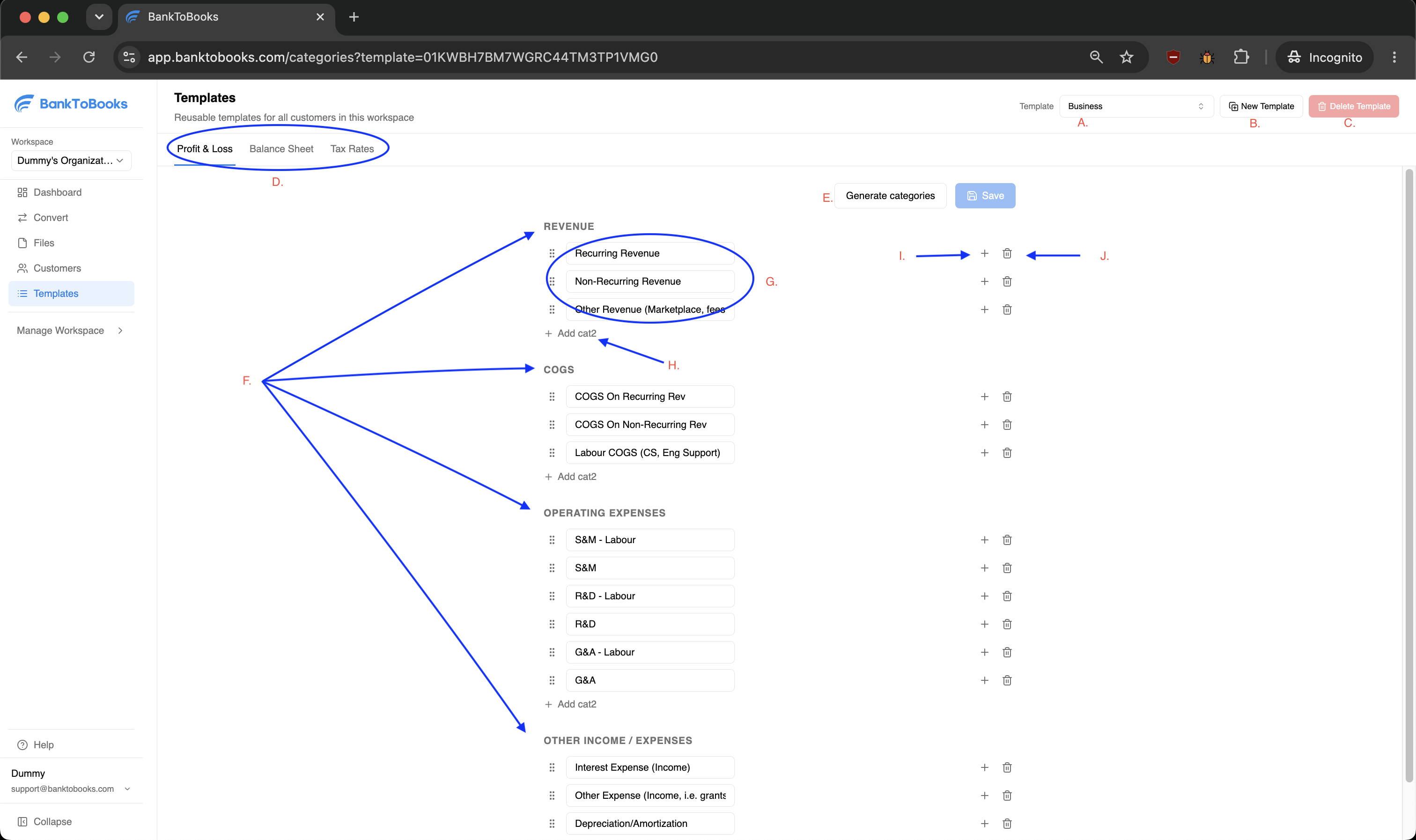
Template library overview.
- A. Template selector
- Choose which workspace template you are editing.
- B. New Template
- Create a new blank template.
- C. Delete Template
- Remove the selected template from the workspace library.
- D. Template sections
- Switch between Profit & Loss, Balance Sheet, and Tax Rates.
- E. Generate categories
- Reset the selected template to the BankToBooks starter categories and clear any tax rates.
- F. Top-level accounting groups
- These are general accounting groups that BankToBooks keeps fixed for consistent reporting. You customize the rows inside them.
- G. Category rows
- Edit the category names used for categorization and reports.
- H. Add category
- Add another category row under the current top-level group.
- I. Add subcategory
- Add more detail under a category when needed.
- J. Delete row
- Remove category rows that the template does not need.
About D: Template sections
Use the Balance Sheet tab to define the Balance Sheet categories that fit the customer's business type and accounting setup.
Because BankToBooks users work across different regions, tax rates are left unset in the default Business template. If you need them, add the rates that apply in your region, such as GST/HST, QST, VAT, or sales tax.
Use a template with a customer
When you create a customer, select one of your workspace templates to start with the right accounting setup. After the customer is created, their template becomes a separate copy. You can edit it for that customer without changing the original workspace template.
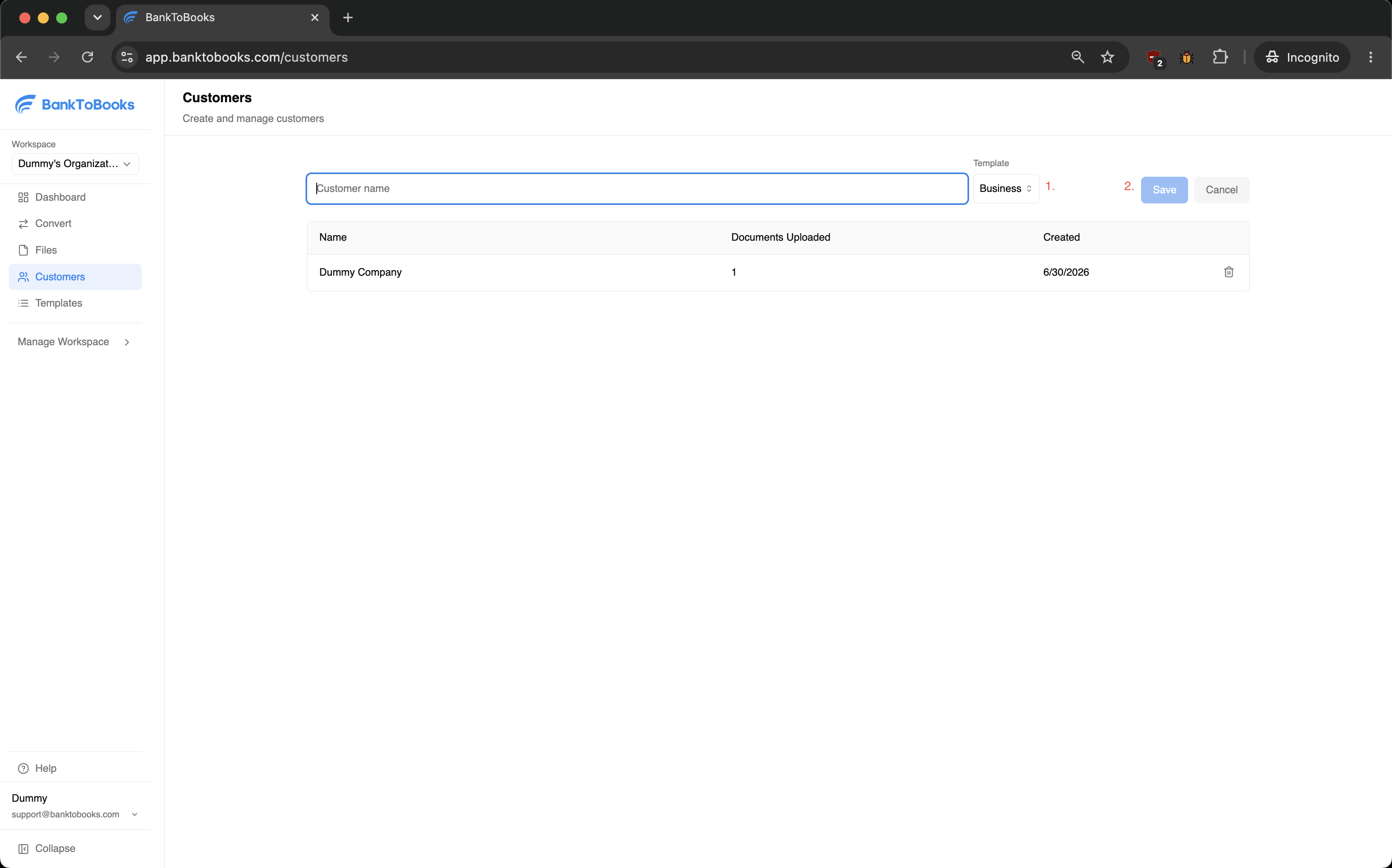
Select the template before saving the customer.
Once the customer is created, if you need to adjust that customer's template, you can do so from Edit template on the customer page. Those edits do not affect other customers created from the same workspace template. If the setup becomes useful for other customers, save it back to the library from the customer template editor.
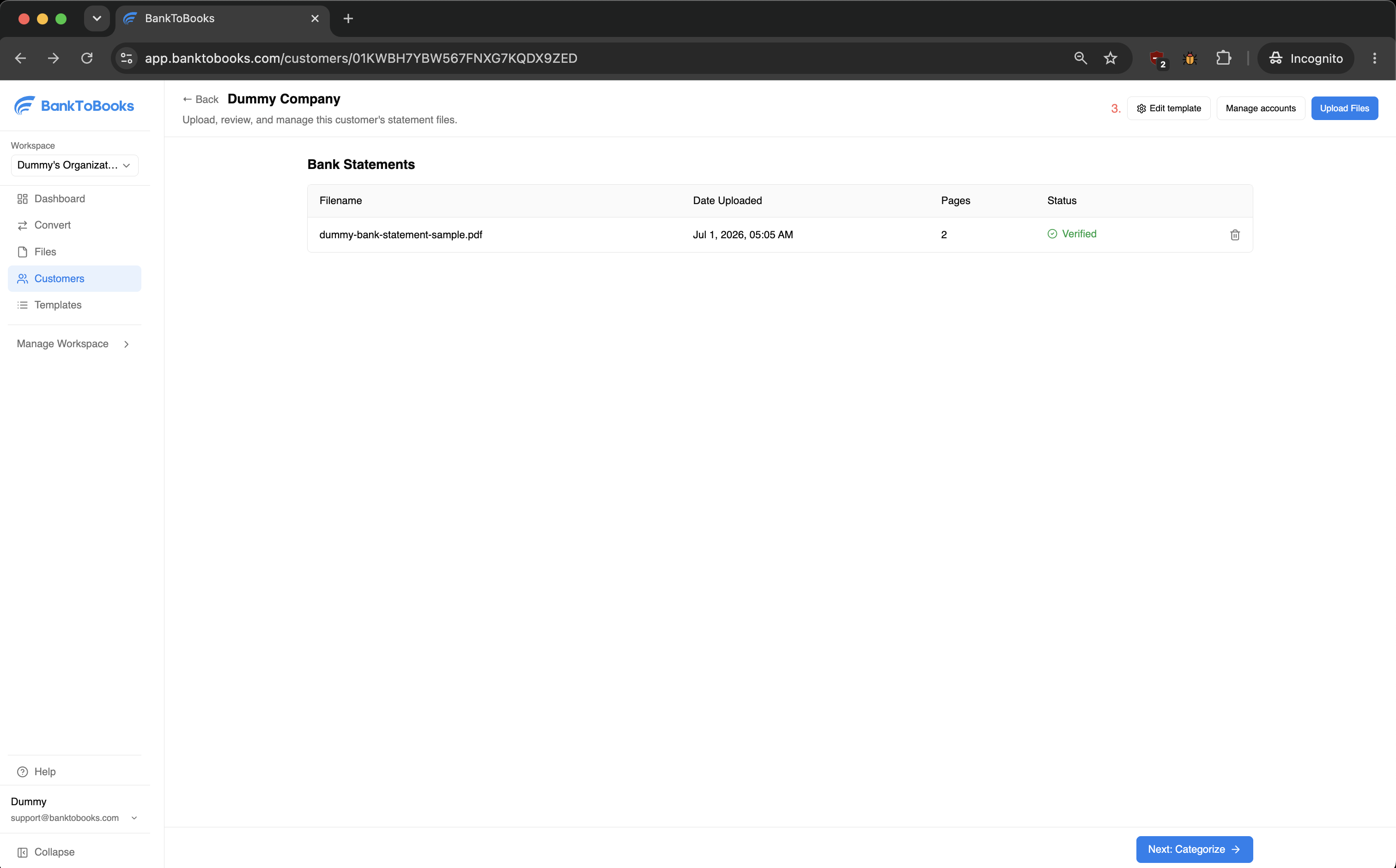
Open Edit template to adjust this customer's copied template.
Last updated: